1
Select artwork
Choose a layer, frame, sketch, or imported image.

Figma Community plugin
GenSVG
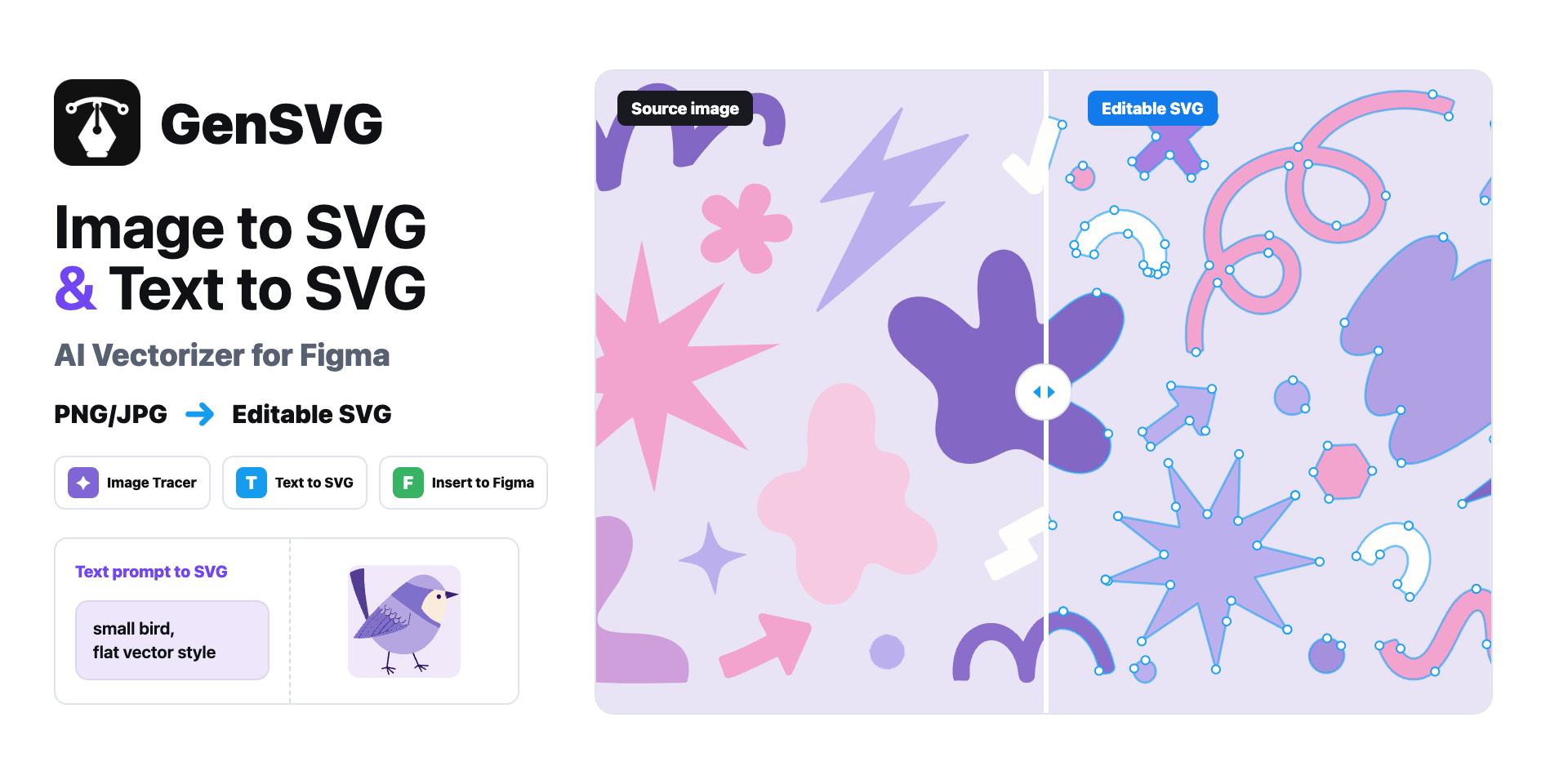
AI vectorizer for Figma. Convert PNG/JPG artwork into clean, editable SVG without leaving your canvas.
Choose a layer, frame, sketch, or imported image.
Rebuild messy pixels into cleaner vector paths.
Insert the result and keep designing in Figma.
No separate tracing tab, no export-and-cleanup loop. Select artwork, run GenSVG, and keep editing in Figma.
Open in Figma CommunityStep 1
Use imported art, screenshots, AI images, icons, rough sketches, or brand assets already sitting on the canvas.
Step 2
The AI vectorizer focuses on smoother curves and less node noise, so the result is easier to edit.
Step 3
Scale, recolor, inspect, and refine the SVG where the rest of the design system already lives.
Built for designers
The plugin focuses on useful vector structure: paths you can edit, fewer points to clean, and a handoff that keeps momentum inside Figma.
Output is designed for real vector editing, not just a traced image wrapper.
AI cleanup reduces jagged curves and removes unnecessary vector noise.
A plugin-first workflow keeps designers close to the files they are already editing.
Use the same GenSVG account and conversion limits across web and plugin workflows.
Install it from the GenSVG listing on Figma Community, then connect your GenSVG account when the plugin asks you to sign in.
The intended workflow is to export the selected layer or frame as an image, vectorize it with GenSVG, then insert the SVG result back into the canvas.
No. It helps when the source is raster artwork, AI art, screenshots, sketches, or imported images that need to become editable vector shapes.
Yes. The plugin is designed to connect to the GenSVG web account so usage and billing stay consistent.
Install the plugin from Figma Community, or use the web app when you need a browser-based conversion.